In this post, I will be discussing the basics of the Pi.js JavaScript library. I will be using the Pijs.org editor to code. You can find it here: Pijs.org Editor.
Once you open the Pijs.org Editor, the first thing you should do is to create a new project. You can do this by going to Editor -> New Project. Type in the name of the project, for this starter project we will be going with the name “Gussing Game”. After typing that in click the “Create Project” button.
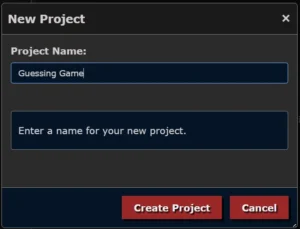
This will create a project with a single file main.js. This is the only file we will be using in this project. When you download the project it will automatically create an index.html file for you which will help you run it locally if you want.
"use strict";
// File: main.js

$.screen( "320x200" );
$.circle( 160, 100, 50 );Generally, the first thing you want to do when creating a pi.js project is to create a screen. The pi.js editor will add this by default along with a circle. Delete the circle line and change the screen size to 300×200. Then print a hello world message to the screen.
$.screen( "300x200" );
$.print( "Hello World" );Press Ctrl+R to run it. You will see the output on the screen.
Now that we got the basics out of the way, lets start working on our game.
$.screen( "300x200" );

// Write a welcome message to the screen that is centered on the screen
$.print( "Welcome to the Guessing Game!\n", false, true );

// Prompt the user to guess a number
$.input( "Guess a number between 1 and 100: ", function ( guess ) {
	$.print( `You guessed ${guess}` );
} );In the print statement, we added a “n” at the end, meaning we want an extra space. We also added two parameters. The second parameter is false, meaning it will not be inline which adds an extra “n”, and the third parameter means we want the text to be centered on the screen. We then prompt the user to guess a number between 1 and 100. In this statement, we pass in a function that gets called after the user enters their number, and we print that number.
Press Ctrl+R to run it. You can see the “Welcome” text is centered now, and there are two new lines before the prompt. Enter a number, and it returns your guess.
Now let’s add an answer and see if the user can guess it.
$.screen( "300x200" );
$.print( "Welcome to the Guessing Game!\n", false, true );
let answer = Math.round( Math.random() * 99 ) + 1;

$.input( "Guess a number between 1 and 100: ", function ( guess ) {
	$.print( "You guessed " + guess );
	if( answer === parseInt( guess ) ) {
		$.print( "You guessed correctly!" );
	} else {
		$.print( "Wrong, guess again." );
	}
} );Here we have added the answer which is a random number between 1 and 100. Then we let the user guess the answer, but they only get one guess. To implement another guess, we could do a bunch of nested input methods with callbacks, but that would be ridiculous.
Also notice that I called parseInt on the guess. That’s because $.input returns a string in the callback function for the guess parameter and we need to convert it to an integer to compare it with the answer.
One thing I don’t like about this code is that with the callback function in the input, it is kind of messing with the flow of our program. Let’s try another approach to make this easier to deal with.
$.screen( "300x200" );
$.print( "Welcome to the Guessing Game!\n", false, true);
guessingGame();


async function guessingGame() {
	let answer = Math.round( Math.random() * 99 ) + 1;
	let guess = -1;
	while(guess !== answer) {
		guess = parseInt( await $.input( "Guess a number between 1 and 100: " ) );
		if( answer !== guess ) {
			let hint = "too high";
			if( guess < answer ) {
				hint = "too low";
			}
			$.print( `Wrong, ${hint}!` );
		}
	}
	$.print( "You guessed correctly!" );
}This is much better. Here we have everything happening sequentially all laid out in one function. You have to add the keyword “async” in order to make this work because this is a requirement in JavaScript in order to use the “await” keyword. What is going on is that the $.input function is returning an object called a promise, I won’t go into detail about promises here but the value in the assignment on the left hand-side, the guess variable, when used with the await keyword won’t contain the promise but it will have the ultimately be the value that we want, the guess. Just remember, that await and async must go together or this won’t work.
Now we also have a loop here so the user can make as many guesses as they need until they get the right answer. We’re also giving them a hint if they are too high or too low.
There is one problem with this code. The input command allows you to enter any string, this means a user could enter values that don’t make any sense. Let’s fix this.
guess = parseInt(
	await $.input( {
		"prompt": "Guess a number between 1 and 100: ",
		"isNumber": true,
		"isInteger": true,
		"allowNegative": false,
		"maxLength": 3
	} )
);Since we now have a lot of parameters I’m going to use an object literal to define the parameters which makes the code easier to follow. Here I’m calling input and passing each parameter by name. I’m not adding a callback since we are using the await keyword it will resolve the promise and return the value. I’m also seeting the prompt to only allow positive integers. The string has a max length of 3 characters.
In the final step let’s add some sound.
$.screen( "300x200" );
$.print( "Welcome to the guessing game!\n", false, true );
guessingGame();

async function guessingGame() {
	let answer = Math.round( Math.random() * 99 ) + 1;
	let guess = -1;
	while( guess !== answer ) {
		guess = parseInt(
			await $.input( {
				"prompt": "Guess a number between 1 and 100: ",
				"isNumber": true,
				"isInteger": true,
				"allowNegative": false,
				"maxLength": 3
			} )
		);
		if( answer !== guess ) {
			let hint = "too high";
			if( guess < answer ) {
				hint = "too low";
				$.play( "SQUARE V20 T140 O2 L8 CDGAB" );
			} else {
				$.play( "SQUARE V20 T140 O4 L8 CDGAB" );
			}
			$.print( `Wrong, ${hint}!` );
		}
	}
	$.print( "You guessed correctly!" );
	$.play( "SQUARE V20 T120 O4 L16 CEG>C<; T240 O5 L16 CEG>C< T480 O6 L16 CEG>C<" );
}Now we have successfully added sound effects to the guessing game using Pi.js.
The play method in Pi.js is a powerful tool for generating sound effects and music in your JavaScript projects. By using note values, you can create unique melodies and soundscapes to enhance the user experience of your application.